Getting Started
Welcome to the DVA Case Tracker. It was developed by a veteran to help other veterans keep track of DVA claims, correspondence and important dates.
It is a personal record-keeping tool and does not connect to DVA systems. It is also useful for keeping historic claims information in one place.
- Complete your details on the Home page.
- Add each DVA claim or case to the DVA Case Tracker.
- Record letters, emails and phone calls in the Correspondence Register.
- Use Send Report Now at any time to email yourself a summary of your active claims.
- If you want automatic email reports, select a Report Frequency and Preferred Report Day on the Home page.
Home
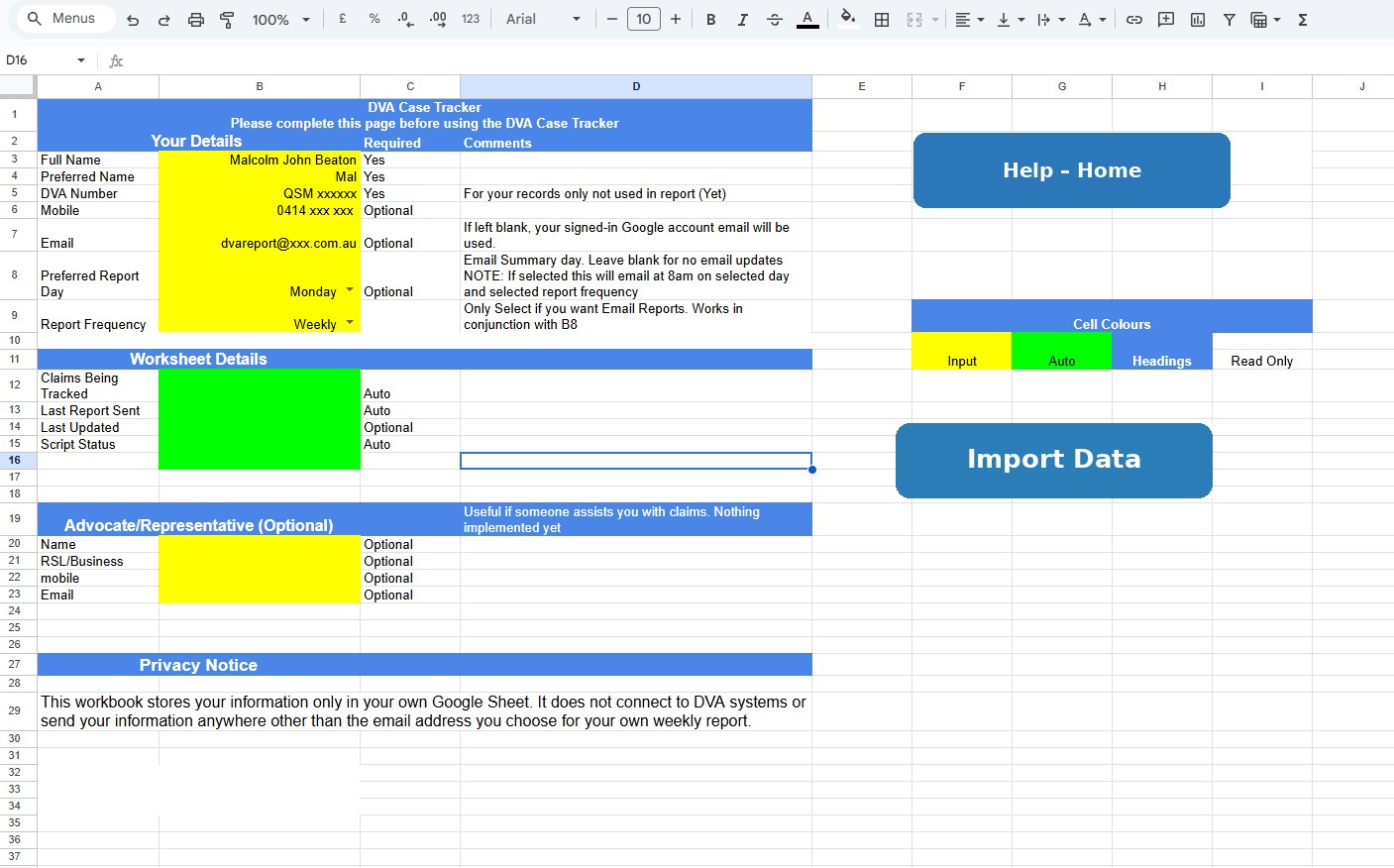
The Home page is where you enter your details and configure reporting. Yellow cells are for information you enter; green cells are maintained automatically.
- Enter your contact details.
- Select your Preferred Report Day and Report Frequency.
- View the number of claims being tracked.
- View the date of the last report sent.
- View workbook and email status.
- Send a report immediately using the Import/Report controls as provided by the workbook.
DVA Case Tracker
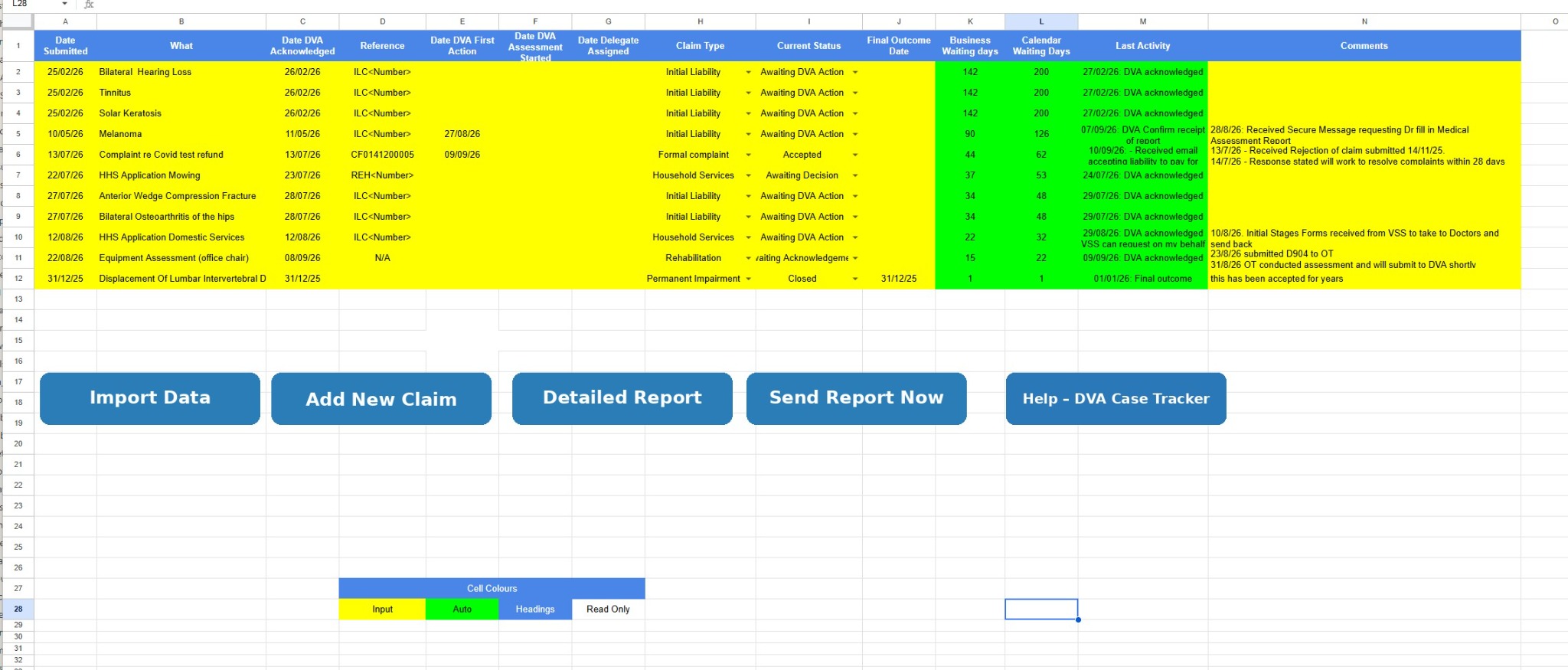
The main tracker records each claim or case and calculates waiting times from the Date Submitted.
- Record Date Submitted, claim/case description, DVA acknowledgement date and reference.
- Record the claim type and Current Status.
- Track Business Waiting Days and Calendar Waiting Days.
- Record the Final Outcome Date for completed claims.
- Record Last Activity and comments.
Business Days Waiting stops when a Final Outcome Date is entered.
Correspondence Register
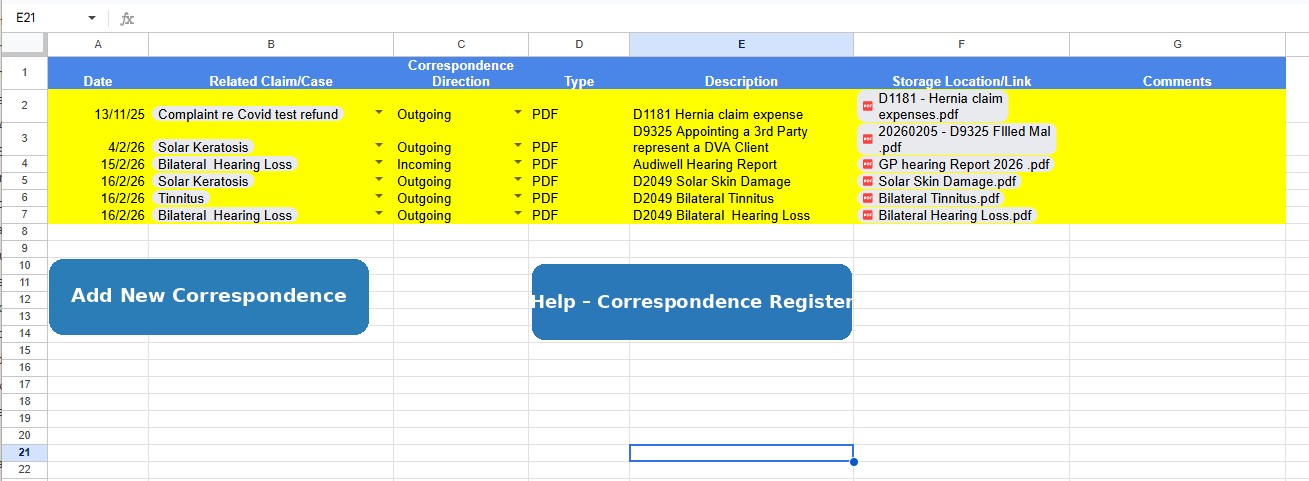
Use the Correspondence Register to keep a separate record of incoming and outgoing correspondence associated with claims.
- Record letters, emails, phone calls, medical reports, decisions and forms.
- Record the correspondence direction and type.
- Store a Drive document link in the Storage Location/Link column.
- Use the normal add-row process where required so formatting and drop-downs are retained.
Travel Claims
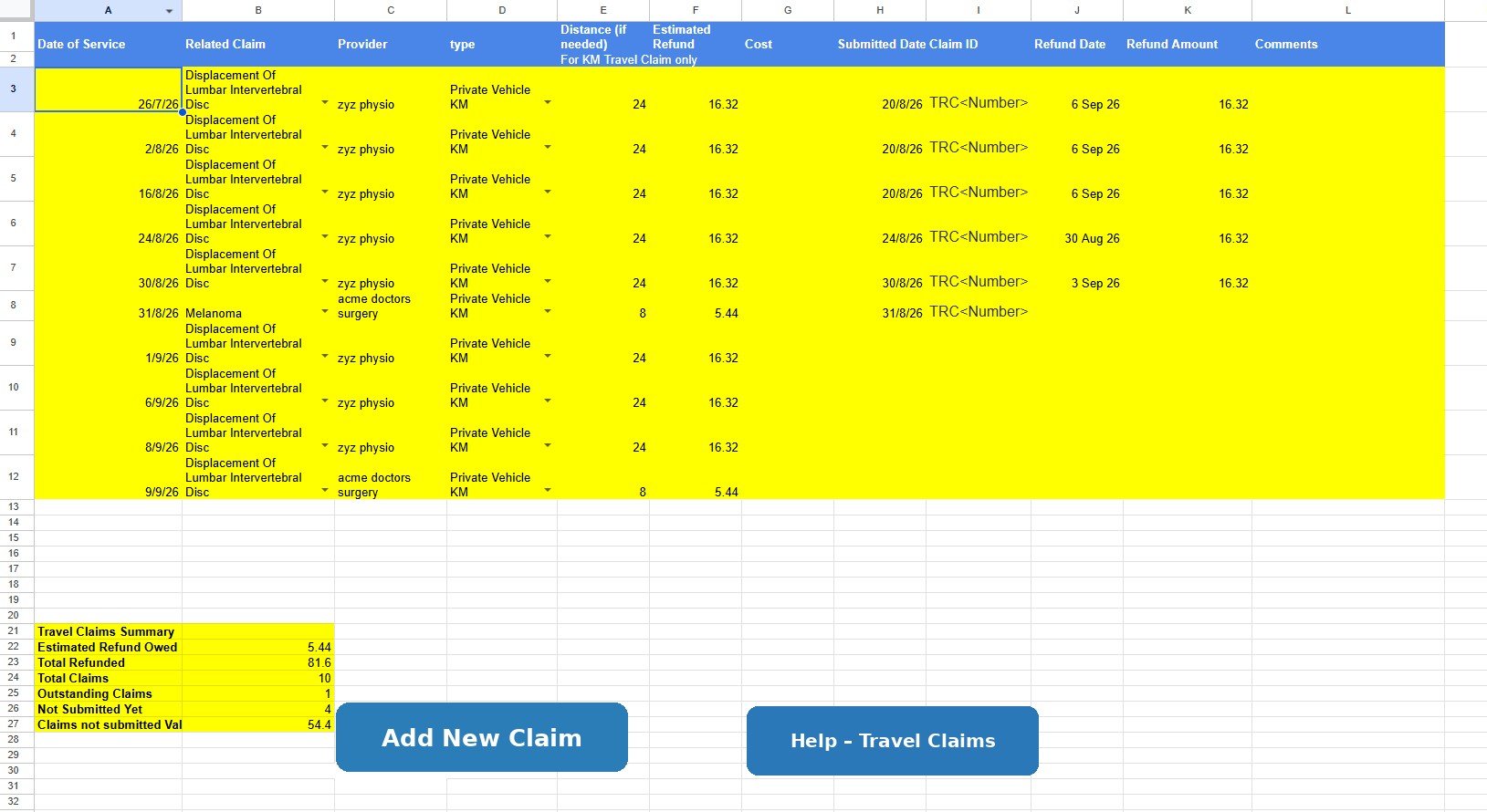
Use this sheet to record travel undertaken for DVA-related appointments and track reimbursement claims.
The sheet records Date of Service, Related Claim, Provider, Type, Distance where required, Estimated Refund, Cost, Submitted Date/Claim ID, Refund Date, Refund Amount and Comments.
Use Add New Travel Claim to add another row while retaining formatting and drop-downs.
MEPI — Medical Expenses Privately Incurred
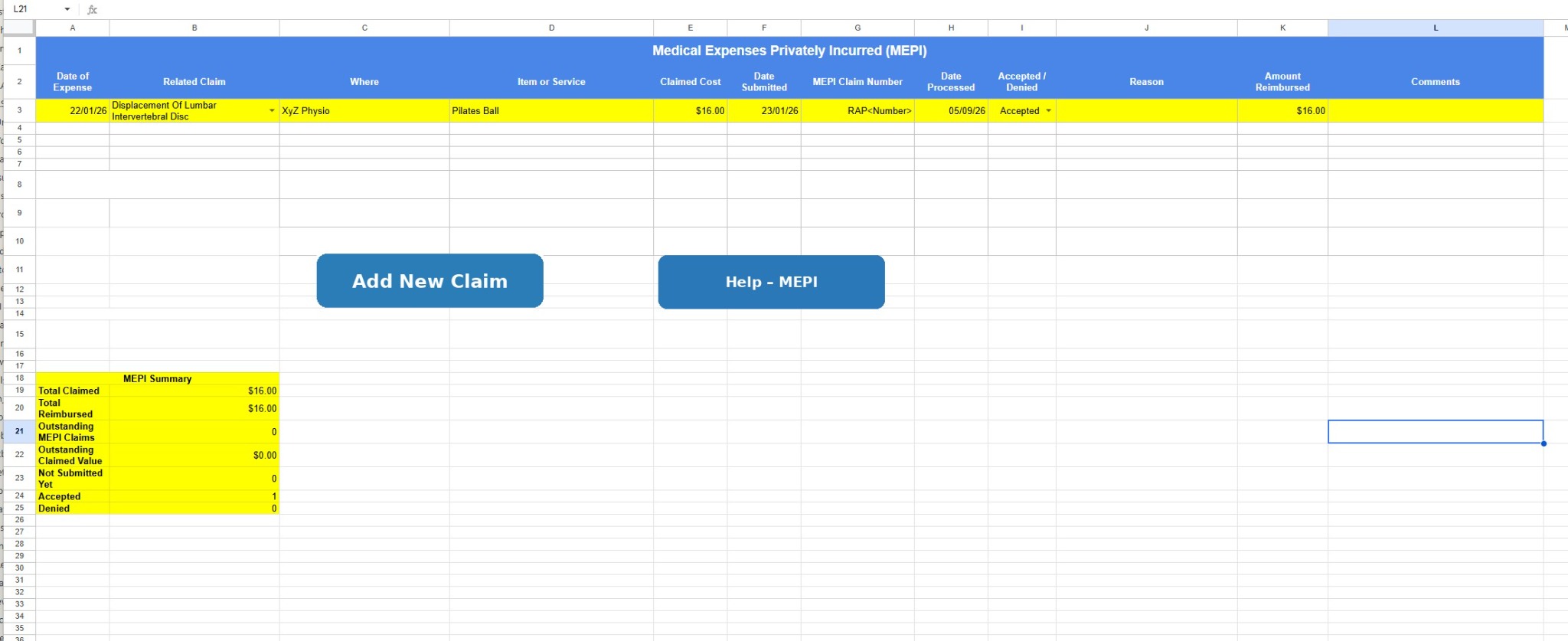
Use this sheet to record medical expenses you have paid privately and are seeking reimbursement for from DVA.
The V3.2 columns are Date of Expense, Related Claim, Where, Item or Service, Claimed Cost, Date Submitted, MEPI Claim Number, Date Processed, Accepted / Denied, Reason, Amount Reimbursed and Comments.
The MEPI Summary shows Total Claimed, Total Reimbursed, Outstanding MEPI Claims, Outstanding Claimed Value, Not Submitted Yet, Accepted and Denied.
Use Add New MEPI to add another row while retaining formatting and validation.
DVA Case Summary Email
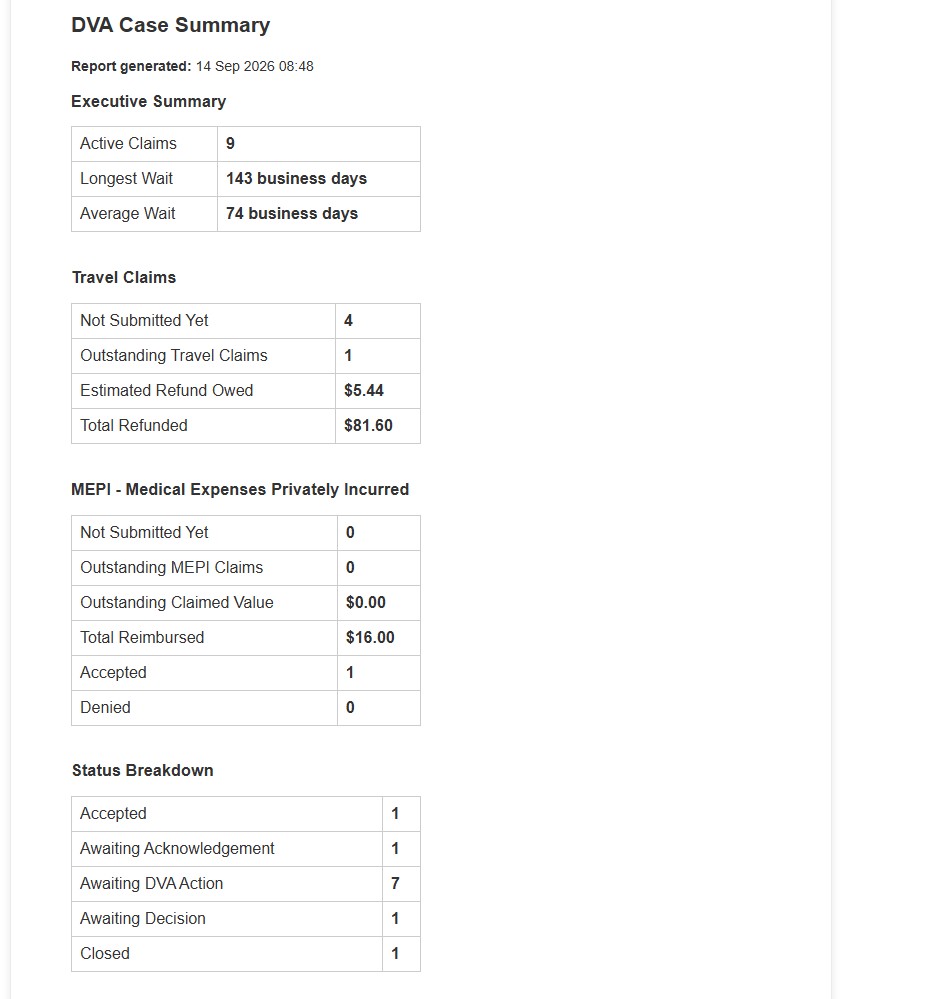
The current summary report brings the tracker information together in one report.
- Executive Summary — Active Claims, Longest Wait and Average Wait.
- Travel Claims — not submitted, outstanding claims, estimated refund owed and total refunded.
- MEPI — not submitted, outstanding claims, outstanding claimed value, total reimbursed, accepted and denied.
- Status Breakdown — number of claims at each current status.
- Active Claims — current status, waiting time and Last Activity.
- Completed Claims — claims with a final status of Accepted, Rejected or Withdrawn.
You can send a report at any time using Send Report Now. Automatic reports are controlled by Report Frequency and Preferred Report Day.
DVA Detailed Summary Email
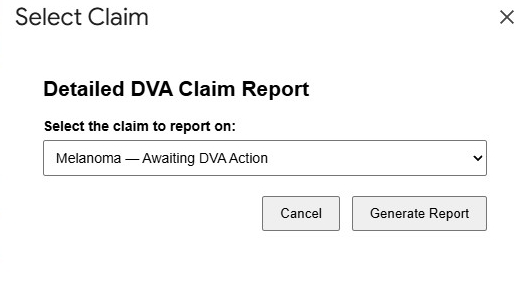
The Detailed Report button lets you generate a detailed report for one selected claim.
Select the claim you want to report on and choose Generate Report. The report provides a more detailed view of that claim than the main DVA Case Summary Email.
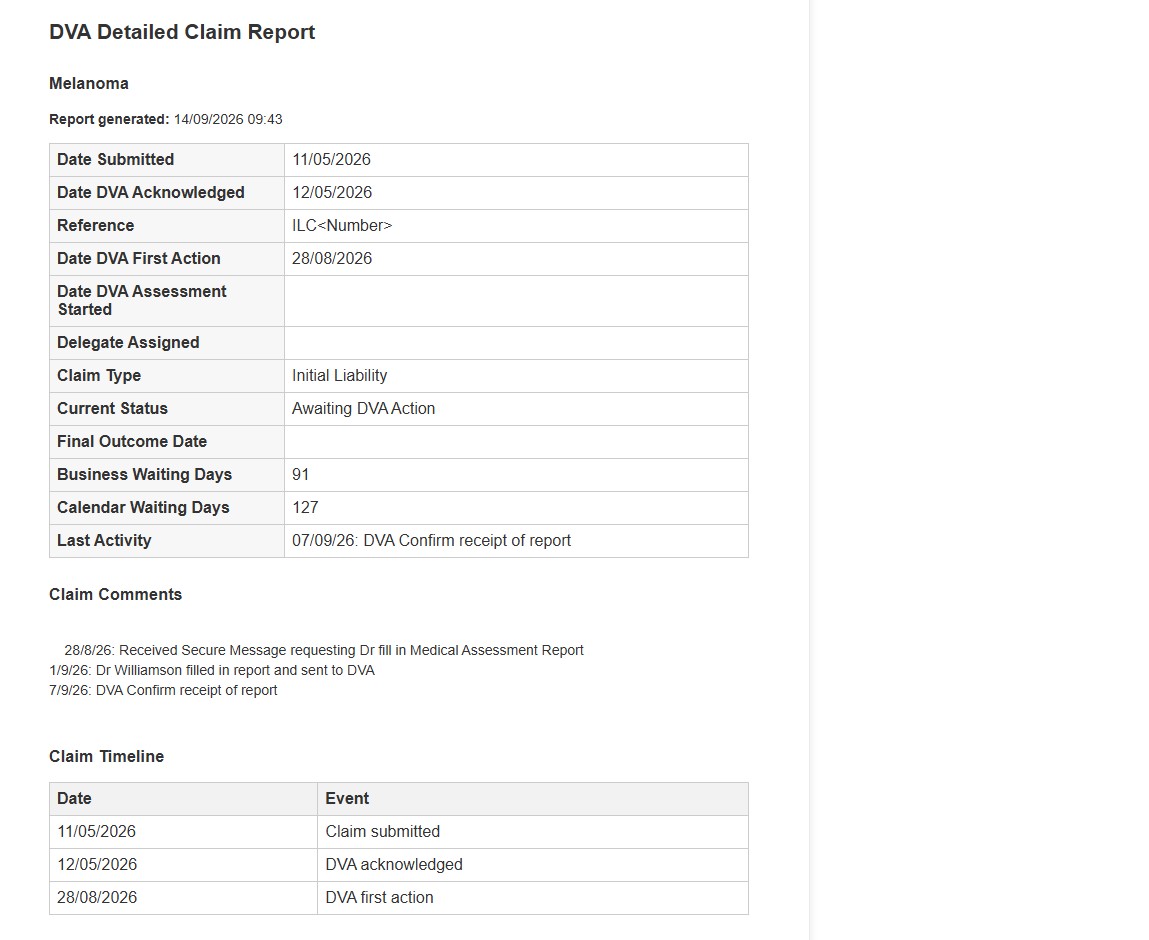
The detailed report includes the claim's formal milestone dates, current status, waiting times and Last Activity, followed by the claim comments and a claim timeline.
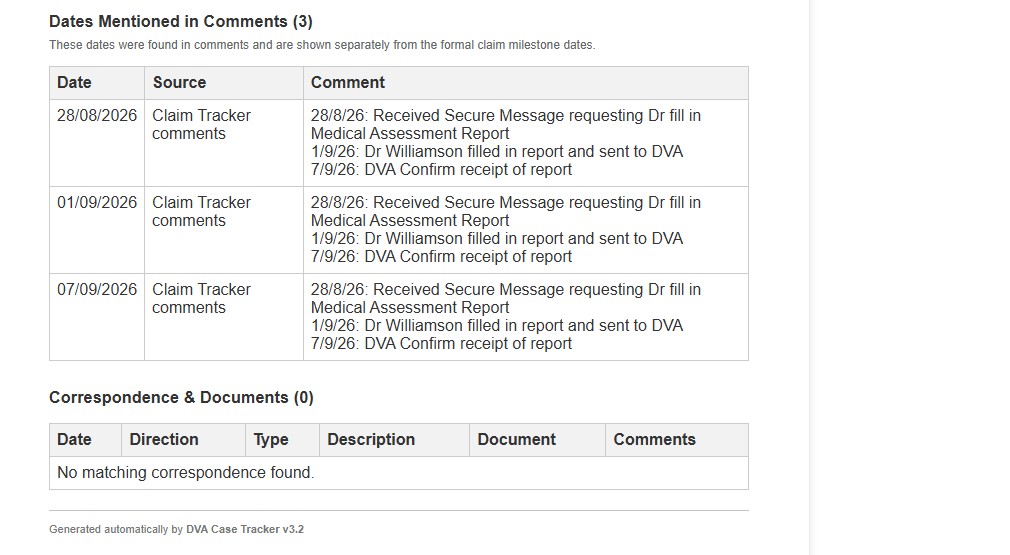
Where applicable, the report also shows dates found in claim comments and a Correspondence & Documents section. This gives you a single detailed record of the selected claim and its supporting information.
First-time Google Authorisation
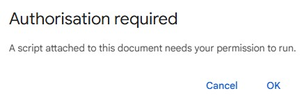
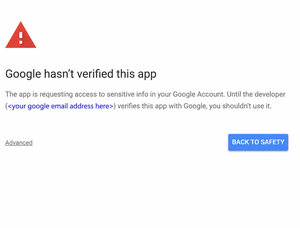
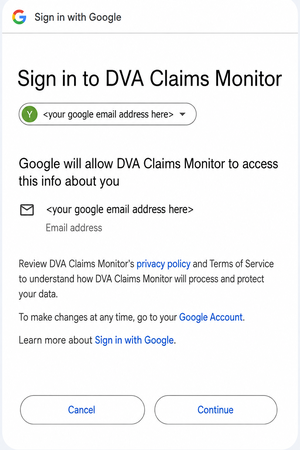
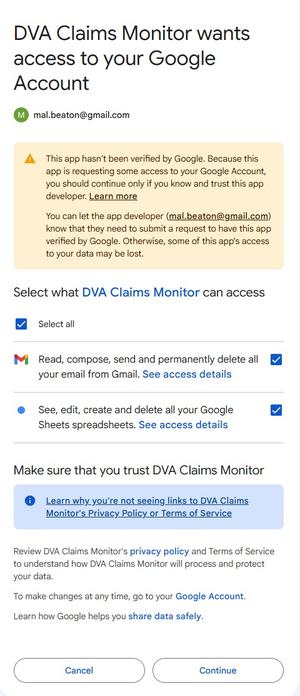
When you first use Send Report Now, Google may display an Authorisation Required warning.
Google requires permission so the script can access your Google Sheets workbook and Gmail account. The script runs from your own Google account and operates on your copy of the workbook.
- Select OK.
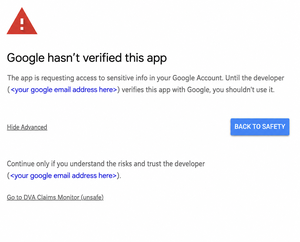
- Select Advanced.
- Select Go to DVA Claims Monitor (unsafe).
- Review the permissions and select Continue.
Colour Guide
The tracker uses colour to distinguish between information you enter and information calculated or displayed by the workbook.
Using the Tracker on iPhone or iPad
The tracker can be viewed and edited normally using the Google Sheets app on iPhone and iPad.
The custom buttons currently require Google Sheets on a desktop computer. This affects Add New Claim, Add New Correspondence, Add New Travel Claim, Add New MEPI and Send Report Now.
Scheduled reports continue to operate automatically.
Privacy
This workbook does not communicate with DVA.
All information remains within your own Google account or spreadsheet.
The only email generated is the report you choose to send to yourself.
Change Log
The Change Log records the version history and major changes made to the DVA Case Tracker.
Use this tab when you want to see what was added or changed between versions.
Important Information
This spreadsheet is an independently developed personal tracking tool. It is not produced, endorsed or supported by the Department of Veterans' Affairs.
It is intended to help veterans keep their own records and monitor the progress of their claims. It does not provide legal, medical or advocacy advice.
Before making significant changes to formulas or workbook structure, keep an untouched copy of the original workbook.